

Roles and settings
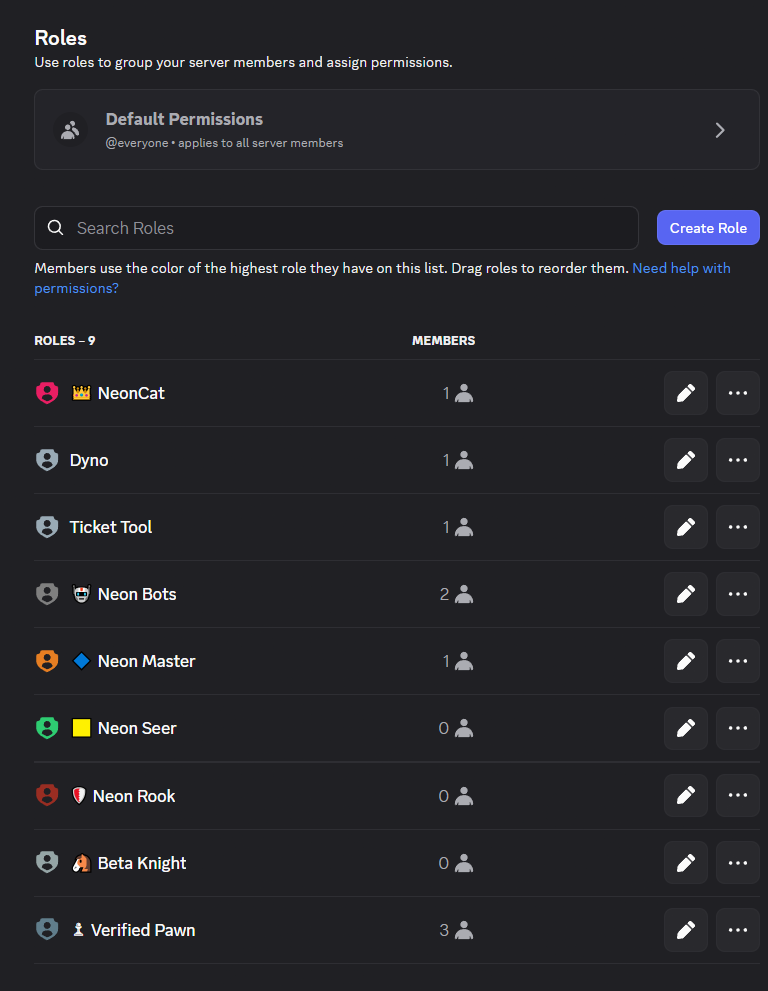
Roles group members and give them permissions. They're the backbone of the server: they decide who sees which channels, who can moderate, who has beta access and who's just a regular user. Members use the colour of the highest role they have, and the role order (the hierarchy) matters enormously.
Role permissions
Every role has a set of permissions: View Channels, Manage Channels, Manage Roles, Ban Members, Manage Server, Manage Webhooks, etc. You set them in Server Settings → Roles → [role] → Permissions.
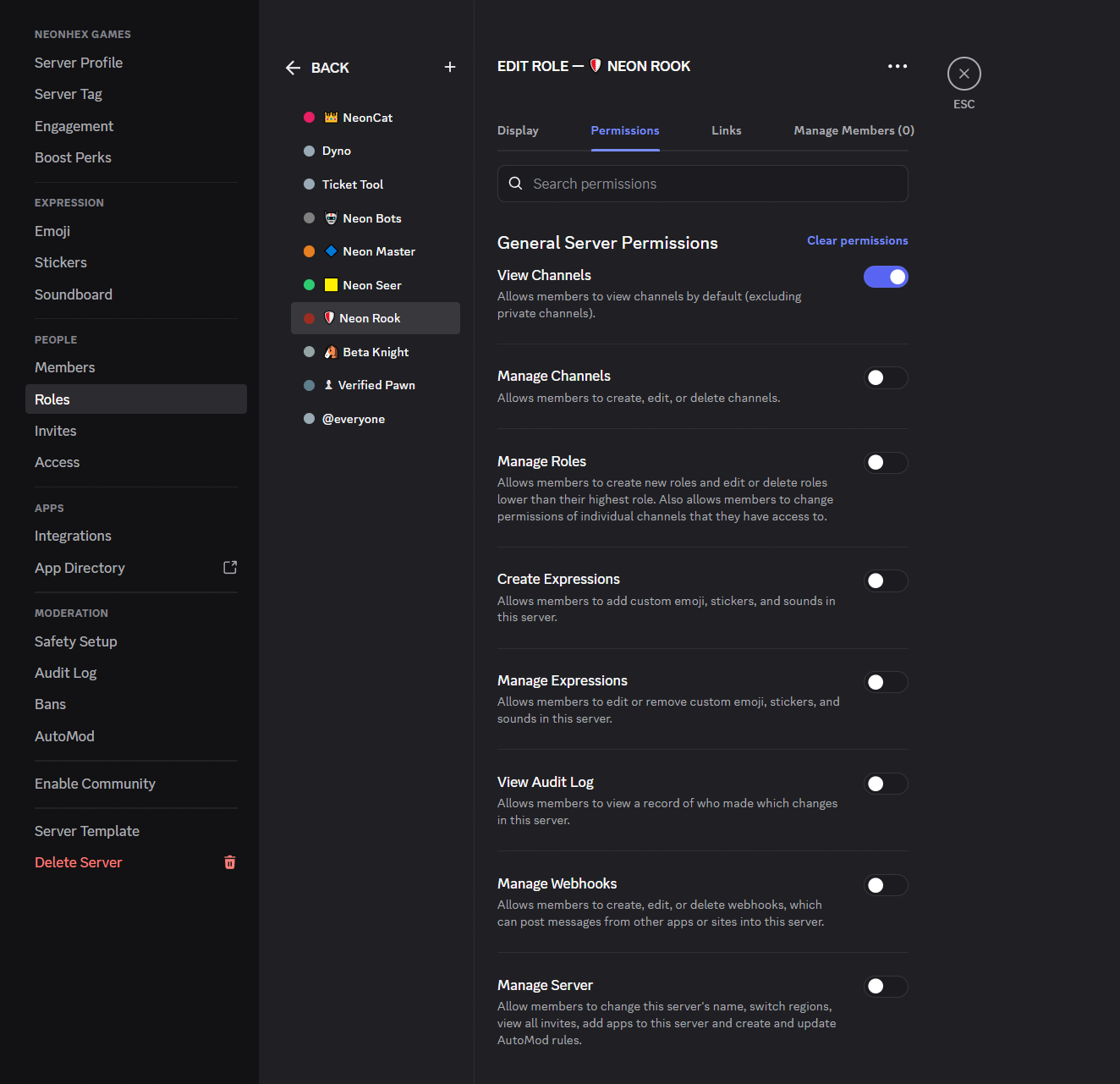
The most dangerous thing is handing out big permissions out of laziness. Don't give Administrator, Manage Server, Manage Roles or Ban Members to anyone but people you truly trust. The principle is simple: least privilege, every role gets strictly what it needs.
Hierarchy matters: a role can only manage the roles below it. Put staff roles at the top, moderation bots right below them, and community roles at the bottom. That way a moderator can't touch the admin roles.
The role rules matrix (Excel / Sheets)
As more roles and channels appear, it gets hard to remember "who can do what". The simplest way not to get lost is a permission matrix in Excel or Google Sheets: put roles on columns, channels/permissions on rows, and tick what each one is allowed to do.
An example role × channel matrix:
| Channel / Role | @everyone | Verified Pawn | Beta Knight | Neon Seer (mod) | Neon Master (admin) | Bots |
|---|---|---|---|---|---|---|
welcome |
read | read | read | read | read | , |
verify |
write | , | , | read | manage | verify |
announcements |
, | read | read | read | write | post |
general-chat |
, | write | write | moderate | moderate | logs |
bug-reports |
, | write | write | moderate | moderate | logs |
beta-chat |
, | , | write | moderate | moderate | , |
staff-chat |
, | , | , | write | write | logs |
You can also make a second role × permission matrix (View / Send / Manage Messages / Kick / Ban / Manage Roles) to see at a glance where you've granted too much.
The matrix's advantage: before you configure anything in Discord, you decide on paper who sees and who can do what. After that you just copy the settings. As the server grows, the matrix becomes your permission documentation, you update it whenever you add a role or a channel.
Re-check the matrix after every new role. Most Discord "leaks" (someone saw a private channel, a user could kick) come from forgotten permissions at the category or role level, not from attacks.
Server rules
Put short, clear rules in welcome or a rules channel, usually behind the verify step. A few that work almost anywhere:
- no spam, ads or unsolicited self-promo;
- no abusive language, harassment or discrimination;
- no build / beta info leaks in public channels;
- bug reports and suggestions go in their channels, not in general;
- respect staff decisions, appeals go through a ticket.
Tie rules to roles: the user gets the Verified role (and server access) only after passing verify and accepting the rules. For beta, a separate Beta role with its own rules (NDA / no leaks).
Community moderators
One of the most important things is to identify people in the community who can become moderators. Often the best moderators are the players themselves, they know the game, know the community, know who causes problems and help far more naturally than someone from the outside.
Look for people who:
- are active;
- reply calmly and have patience;
- help other players;
- don't seek drama;
- understand the game;
- communicate civilly and don't abuse authority.
Don't give too much power too fast. Start with limited roles (e.g. only Manage Messages and mute, no ban) and grow access over time, as they prove themselves. A poorly chosen moderator with too many permissions does more harm than no moderator at all.
If you can, reward them. Not necessarily money, especially at the start: for a free-to-play game, gems, currency, cosmetics, early access or special roles work very well.
Special users, beta and whales
In game communities, some users are far more valuable than average, not just because they pay, but because they're involved, give feedback, understand the meta and influence the server's atmosphere.
You can have special roles for: beta testers, veterans, top contributors, bug hunters, VIP players, whales, guide creators, community helpers.
One of the most interesting community-support methods I've seen was in AFK Arena, where whale support was much more personal and direct. The idea isn't to copy the system but the principle: the most involved or valuable users may deserve a better communication channel. For a small studio, that can mean a special role, beta access, a private channel or priority support via ticket.
Resources and tutorials
Setting up roles and bots is much easier with a good tutorial in front of you. A few useful sources:
- Discord Support, the official articles on roles and permissions: support.discord.com;
- Dyno, moderation, automod, logs: dyno.gg;
- Carl-bot, reaction roles, automod, logs: carl.gg;
- Ticket Tool, ticket system: tickettool.xyz.
On YouTube search for things like "Discord server setup for gaming community", "Discord roles and permissions explained", "Dyno bot setup tutorial" or "Carl-bot reaction roles tutorial". There are many up-to-date guides that walk you step by step through exactly what you saw in the screenshots above.
For the channel and category structure see Creating your server, and for which bots to pick see Good bots to start with.