

Google site verification
Once you have the domain and the website live, an important step is to verify domain ownership in Google Search Console. It's the Google platform where you confirm you own a website or a domain. After verifying, you can see whether the site is indexed, submit sitemaps, check technical issues and prove you control the company's official domain.
For a game company, this step matters for two reasons:
- it helps the company website be visible and verifiable in Google;
- it can be required during verification for Google Play Console, especially for organisation / business accounts.
If you want to publish games under the company name, not just as an individual, Google will ask for more verification elements: company data, D-U-N-S, a payments profile, official documents and, in some flows, verification of the company's website.
Which Google account to verify with
My recommendation: verify from the company's main email or from the Google Workspace account that administers the company's infrastructure. Don't do it from a random personal Gmail, because that account can become hard to transfer later.
Better use an account like:
admin@company.comowner@company.comcontact@company.com- the company's main Google Workspace account
The company's digital ownership should stay with the company, not an individual. At an investment, audit, sale or ownership transfer, it's much cleaner if the domain, Search Console, Google Play and Google Workspace are tied to company accounts.
Where verification happens
Verification happens in Google Search Console. The general process:
- open Google Search Console;
- choose Add property;
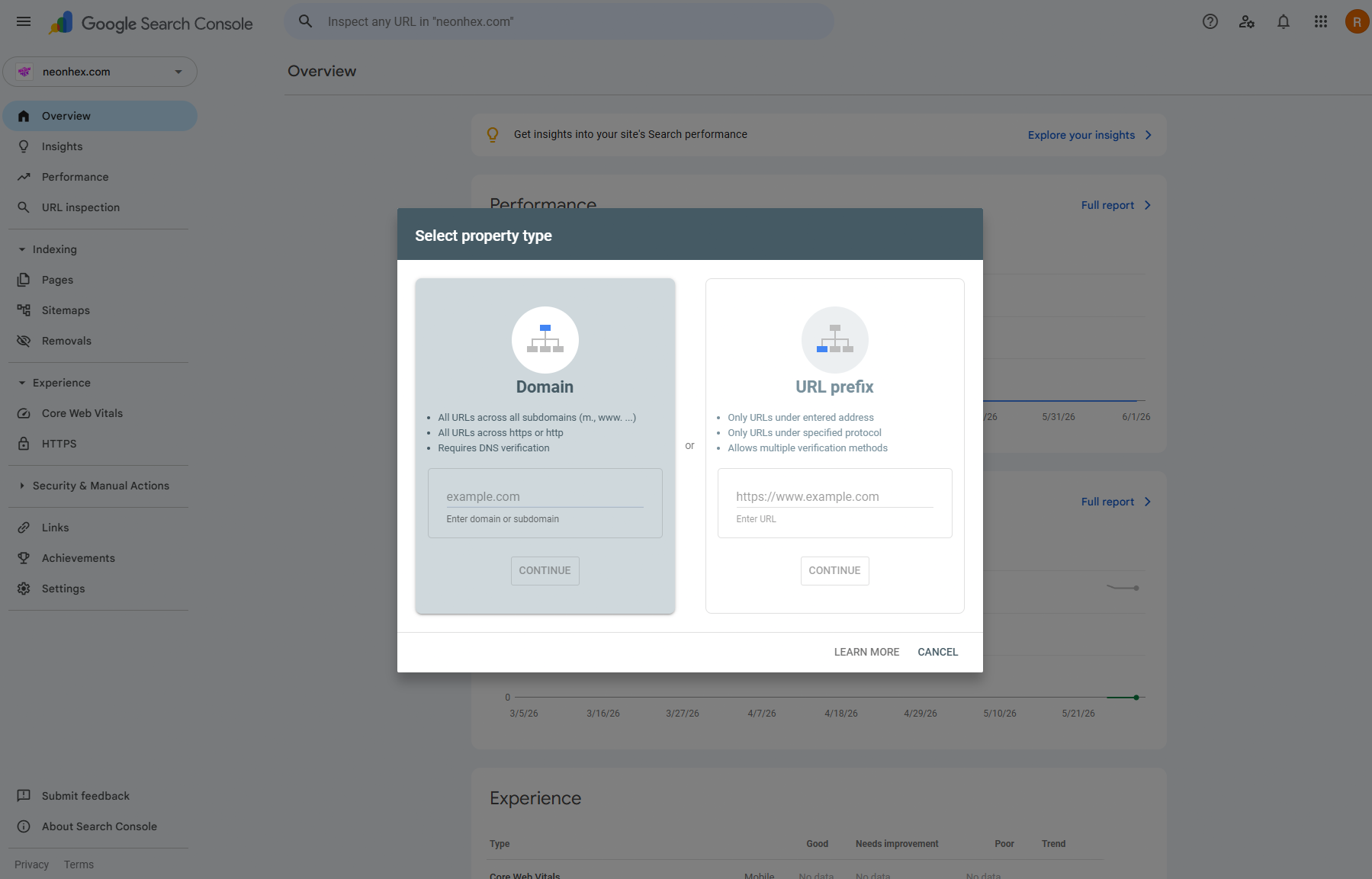
- choose the property type;
- enter the domain;
- Google gives you a DNS TXT record;
- add that TXT record in the domain's DNS provider;
- go back to Search Console and press Verify.
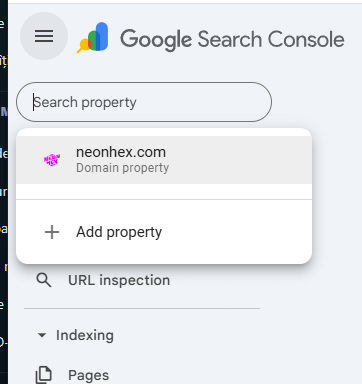
Domain property vs URL prefix
When you add a website, Google offers two options:
| Domain property | URL prefix | |
|---|---|---|
| What it verifies | the whole domain | only one exact address |
| Example | startgamedev.ro |
https://www.startgamedev.ro/ |
| Covers | http, https, www, subdomains | only the exact URL entered |
| Verification method | only via DNS TXT record | DNS, HTML file, HTML tag, Analytics, etc. |
| Suited for | a company (cleaner, more solid) | quick checks on a single URL |
For a company I recommend Domain property, even though it requires a DNS step. It's clearer and more solid long-term. (If you choose URL prefix and have both the www and non-www variants, be careful which address you enter.)
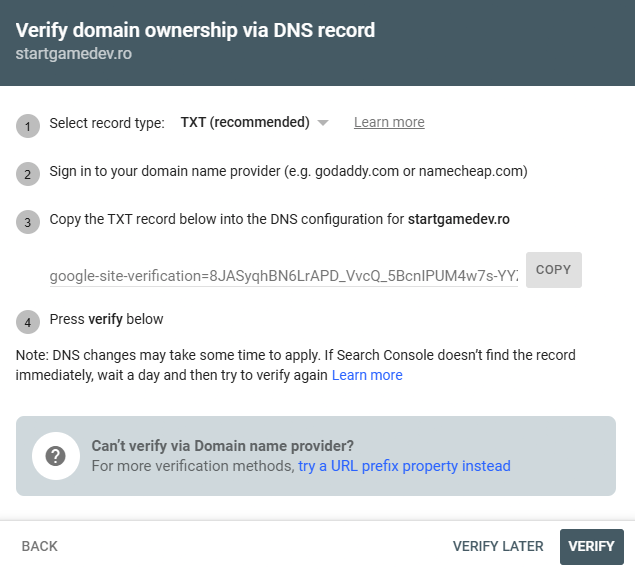
Verifying via a DNS TXT record
For Domain property, Google asks you to add a TXT DNS record, with a value like:
google-site-verification=YOUR_VERIFICATION_CODE
Copy the value exactly and fully, including the google-site-verification= part. Don't copy only the code after the equals sign.
Where to add the TXT record
The TXT record isn't necessarily added where you bought the domain, but where the domain's DNS is managed:
- DNS in GoDaddy → add it in GoDaddy;
- Cloudflare → in Cloudflare;
- classic hosting with cPanel → in the Zone Editor / DNS Zone;
- Vercel nameservers → in Vercel;
- domain only registered at ROTLD but with nameservers elsewhere → at the active DNS provider, not at ROTLD.
On a site hosted on Vercel, if the nameservers are set to Vercel, the TXT record is added in Vercel → Domains → your domain → DNS Records.
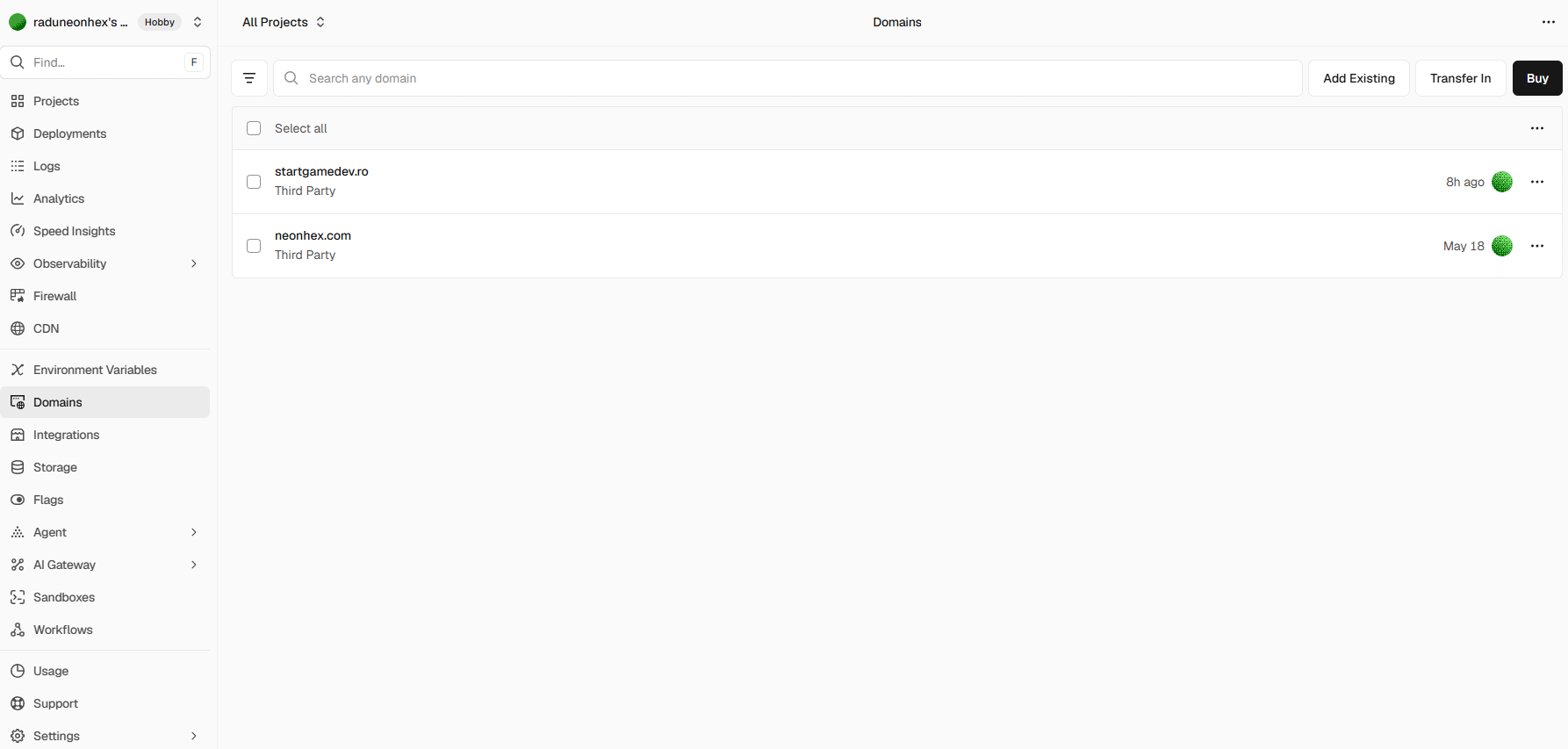
Example: adding the TXT record in Vercel
In Vercel, on your domain, in the DNS Records area, fill in:
- Name:
@ - Type:
TXT - Value:
google-site-verification=YOUR_CODE_FROM_GOOGLE - TTL:
60or the default - Priority: leave empty
Then press Add.
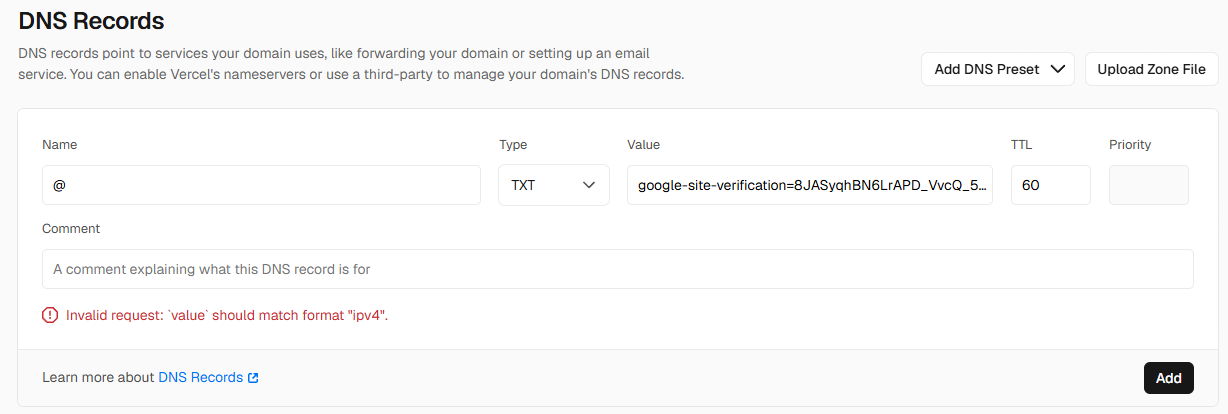
If you get the error Invalid request: value should match format "ipv4", it means the platform is trying to read the value as an IP (an A record), not as TXT. Check again that you selected TXT as the Type before Add. If the interface got stuck, reload the page and try again.
Confirming verification
After adding the TXT record, go back to Search Console and press Verify. Sometimes it works immediately, sometimes you have to wait a few minutes or hours, because DNS needs time to propagate. When everything is correct, Google shows Ownership verified.
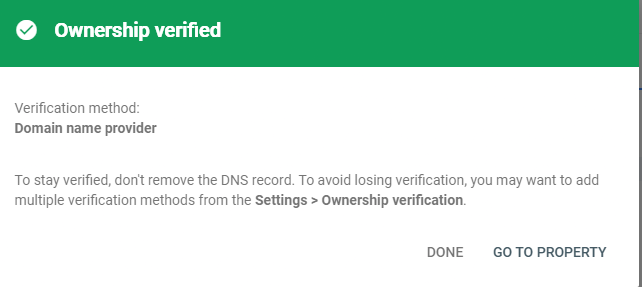
Once verification succeeds, don't delete the TXT record from DNS. Google may re-verify ownership in the future, and if the record is missing, you can lose the verification.
Why it matters for Google Play
For Google Play, the company website becomes part of the developer's public and administrative identity. Google wants to know the company exists, that the data is consistent and that you control the associated domain. So it's good for the following to be consistent:
- the company name in Google Play;
- the company name in D-U-N-S;
- the company name in official documents;
- the website domain;
- the company emails;
- Google Search Console;
- Google Workspace, if you use it.
The better aligned these are, the cleaner the verification process.
Practical recommendation
Verify the domain as early as possible, not only when Google Play asks for it. The recommended order:
- buy the domain;
- publish the website;
- set up the company email;
- configure Google Workspace, if you use it;
- add the domain in Google Search Console;
- verify the domain via a DNS TXT record;
- keep the TXT record active;
- use the same domain and the same official data in Google Play Console.
The step seems minor, but it helps a lot with ownership, auditing, platform verifications and a professional image.
Next step
Move on to the links required by platforms: Apple / Google Play links.